

How to migrate to Flodesk from Mailerlite (or any email marketing platform!)
Learn how to move to Flodesk from mailerlite - or whatever email marketing tool you’re using with this simple step-by-step tutorial.
If you’re already using an email marketing platform (eg. Mailerlite) but you’re wanting to switch to Flodesk*, the steps are very simple and work the same for most tools!
I’ve been using Flodesk for over 7 years now - for myself and my website design clients - and love how easy and intuitive it is to use, which is why so many people choose to migrate their email marketing across!
Table of Contents
*Disclaimer: This post contains affiliate links where I get a small commission if you make a purchase, so thank you in advance for your support! Please know I would never recommend anything that I don’t personally LOVE myself.
Watch the video below for the tutorial or keep scrolling to read:
Why should I use Flodesk vs Mailerlite?
While Mailerlite has a great free plan for those just getting started with email marketing, Flodesk’s is generally much easier and more intuitive to use for creatives, plus allows you to design the most beautiful emails.
I have a full comparison of Flodesk vs Mailerlite here with more details.
PLUS a step-by-step beginners tutorial for Flodesk to help you get set up and sending your first email newsletters!
How to migrate to Flodesk (tips for all email marketing platforms)
‘Clean’ your email list before you export
Before we export your email list ready to import into Flodesk*, it’s a good idea to make sure all the email subscribers you’re moving over are actually good quality, engaged subscribers! Perform a ‘list cleanse’ by deleting subscribers that haven’t been active (ie. haven’t opened or clicked any of your emails) for a few months, before you get started.
decide which groupings / segments / tags are important to you
Depending on how complicated your current email marketing setup is, you might have your subscribers organised in different groups or segments, or set up with different tags based on behaviours, interests etc. You will want to go through these before moving to Flodesk, and set up segments in Flodesk that match them ready to switch over.
Check if you have custom fields set up
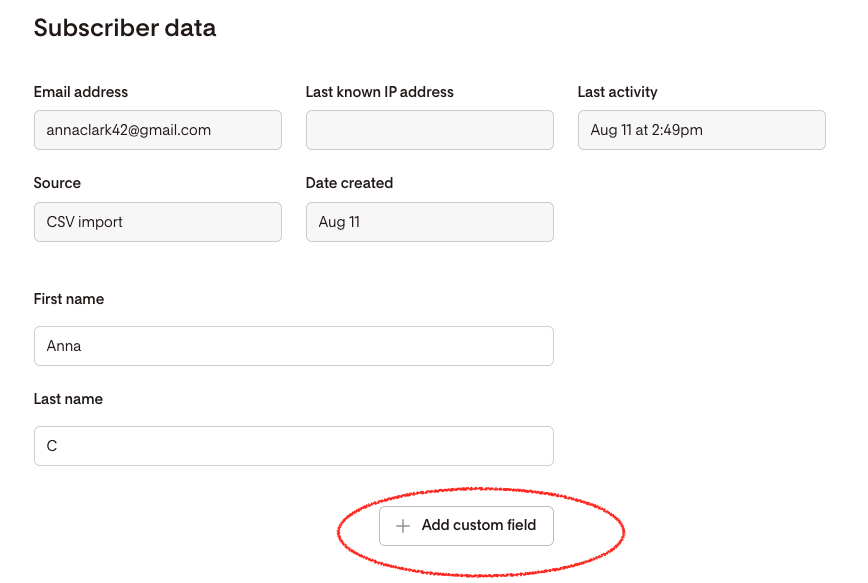
You might also have ‘custom fields’ set up in your current email marketing tool, which allow you to collect additional data from subscribers - not just their names and email addresses. For example ‘Location’, ‘Birth Month’ etc. Again you want to decide which of these you set up in Flodesk to match.
don’t send to everyone straight away once you’ve moved to flodesk!
Once you’ve migrated your subscribers over to Flodesk, don’t just start sending emails straight away to your whole list! Especially for larger lists, it’s important that you warm your list up to start with when you move to a new email service provider (ie. Flodesk), because you have to train peoples’ inboxes (eg. Gmail, Apple Mail), that your emails are trustworthy and not spam.
The best way to do this is to make a segment in Flodesk that contains all your MOST engaged subscribers (eg. people who have engaged with an email from you in the last week or two), and send an email to them first. Once they’ve opened and clicked that email, you can set up a new segment for your next most engaged subscribers, and so on.
How to move from Mailerlite to Flodesk
1) Recreate your Mailerlite segments & custom fields in Flodesk
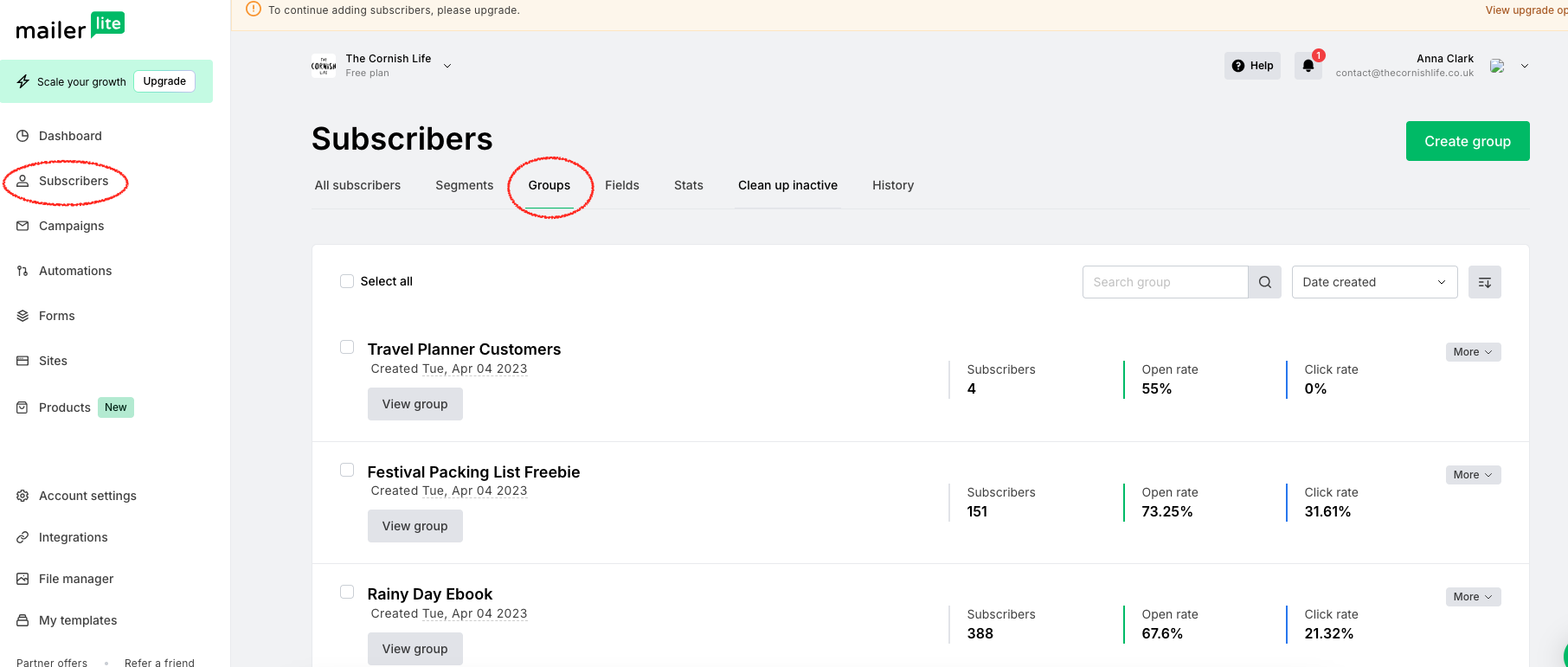
In the Subscribers area in Mailerlite, head to Segments and Groups to see if you have any set up here that you’d like to move over to Flodesk*. These are useful ways of organising your subscribers, so it’s better to move these over one by one rather than import your whole list straight away!
Head into Flodesk > Audience > Segments, and start setting up segments that match the groups/segments you’ll be moving over from Mailerlite.
2) Select all subscribers in each mailerlite group + export as csv
In your Mailerlite Group or Segment, select ALL (every subscriber within that Group or Segment) and choose to ‘export as CSV’. This will download a spreadsheet of all those subscribers to your computer.
3) Add subscribers to Flodesk segments + import as csv
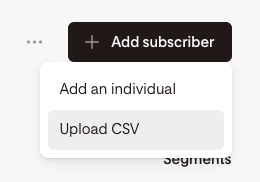
Once the export is complete, go into the corresponding segment you’ve set up in Flodesk > Add Subscribers and ‘Upload CSV’ and select the spreadsheet export.
4) Map csv fields to Flodesk’s fields
On the left hand column you will see all the fields of information from your Mailerlite export list, and we want to map that information to the relevant fields inside Flodesk. ie. A subscriber’s email address gets mapped to the ‘email address’ field, first name to ‘First Name’ and so on.
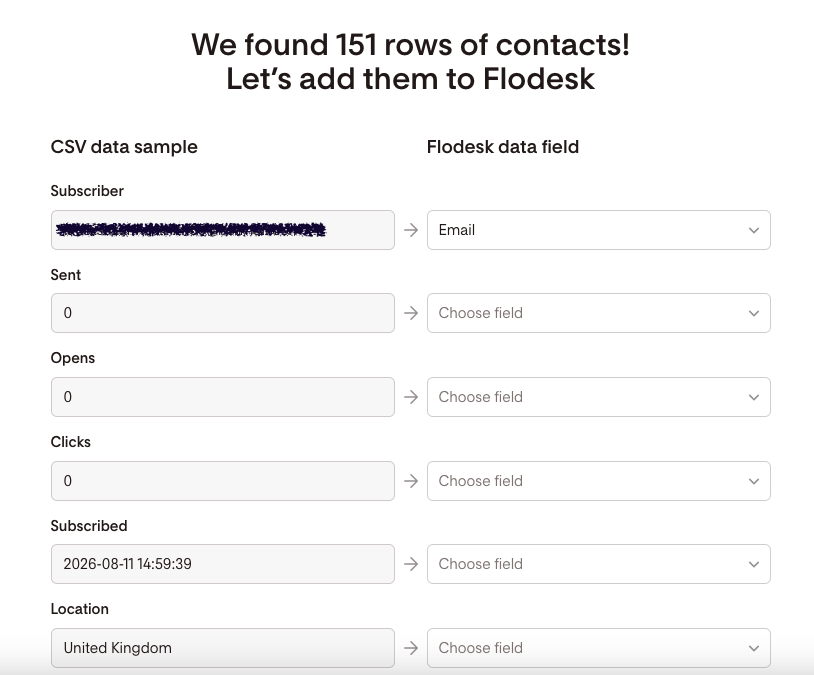
And that’s it! Depending on the size of your list you may need to a wait a few minutes for it all to import, but Flodesk will send you an email once the import is complete!
FYI - Sometimes for larger lists you may need to go through some security verification steps with Flodesk when importing your subscribers (this is to make sure your list is legit and not ‘bought’ or spammy!).
Want 25% off your first year of Flodesk?
As an affiliate partner for Flodesk, I can get my audience a discount on Flodesk’s paid plans, so don’t miss out if you’re making the switch to Flodesk!
If you sign up using my link (or start your paid plan using my code below), you can get 25% off your first year 🎉
Or use my code (00G2QH) at the checkout when you subscribe to a paid plan for the first time.