

Flodesk + Canva Integration: How to import Canva designs into Flodesk (2026)
As of April 2026, Flodesk and Canva have created an amazing integration that allows you to import Canva email designs into Flodesk in one click!
This is incredible news for Flodesk users who want to create more custom designs and something that looks different from the usual Flodesk email templates and blocks available, and for Canva users who have been playing with designing emails but had no way to send them!
Honestly as a long-time Flodesk user since 2018 (and a Flodesk University Trainer!), I feel like this is one of their most game-changing integrations yet!
Table of Contents
*Disclaimer: This post contains affiliate links where I get a small commission if you make a purchase, so thank you in advance for your support! Please know I would never recommend anything that I don’t personally LOVE myself.
Watch the video below for the tutorial or keep scrolling to read:
What is Flodesk?
Flodesk* is an email marketing tool specifically design with creatives and small business owners in mind, due to their super intuitive, simple and non-overwhelming platform and easy email design features… now made even easier with an integration with Canva! I’ve been using Flodesk since 2018 when they launched and recommend it to most of my client.
Want to learn more?
Read my ultimate guide to Flodesk here.
Read my comparison between Flodesk and Squarespace email campaigns here.
Read my comparison between Flodesk and Mailerlite here.
What is Canva?
Canva is an incredible, browser-based design tool that I’ve been using pretty much ever since I started my business back in 2015 to be honest! Over the years they’ve added so many amazing features and integrations, including now the ability to design full email newsletters and email promotions.
Flodesk & Canva Integration 1: How to add Canva graphics into Flodesk emails
There are 2 different ways you can import Canva designs into Flodesk, and the first involves just adding single graphics or sections of designs into your existing Flodesk emails.
Step 1: Connect Canva to Flodesk
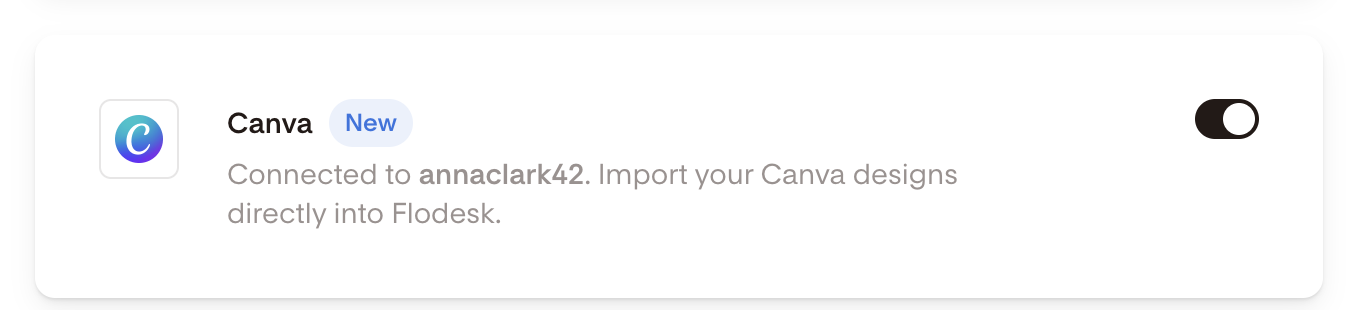
Go into your Flodesk Settings > Integrations and click connect to authorise Flodesk to connect with your Canva account. (You can set up a free Canva account here if you don’t have one already).
Step 2: Create your Flodesk email
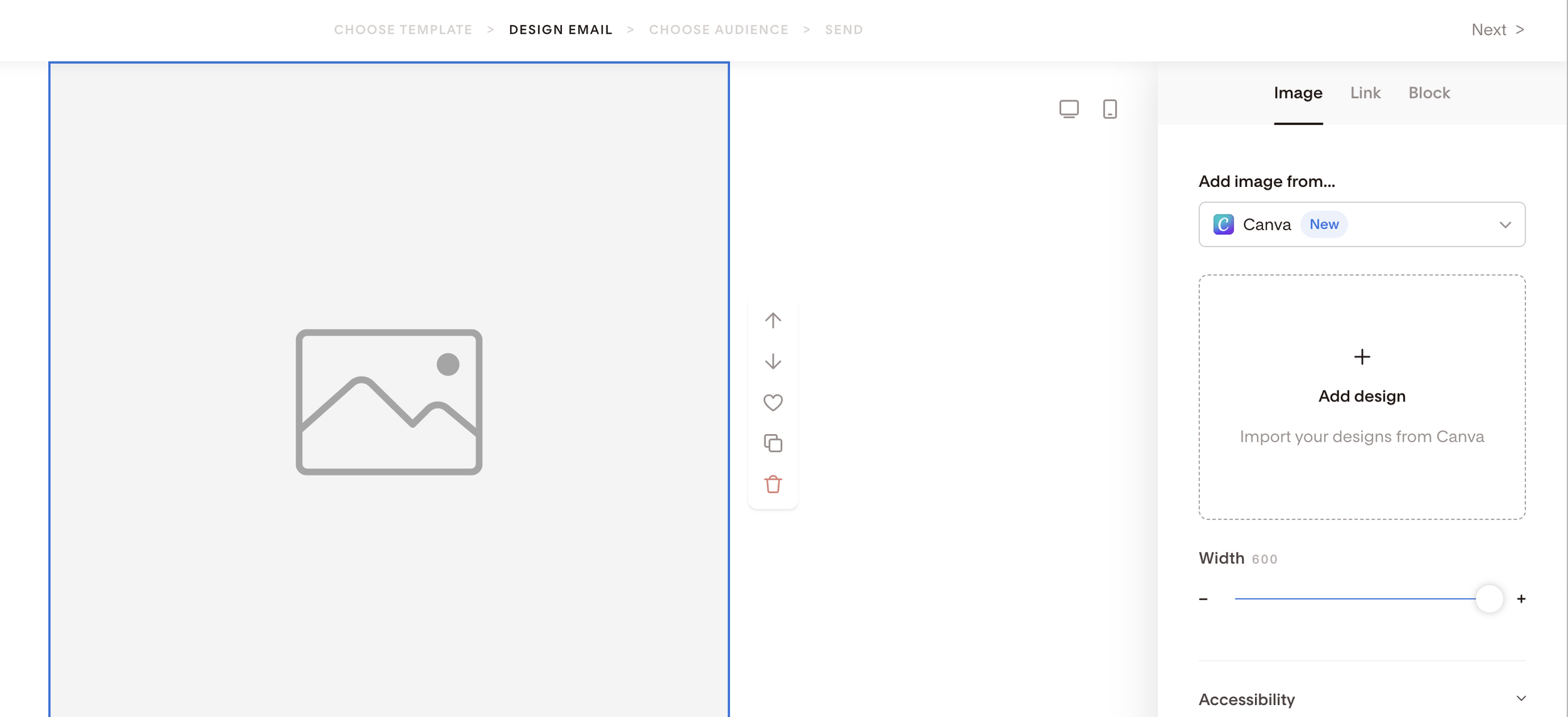
Create an email in Flodesk as you usually would, either starting from scratch with your own design or using one of Flodesk’s email templates. Then click the + button to add an image block, select the block, and on the right hand side in the dropdown, select to add the image from Canva (rather than from your computer).
Step 3: Select an existing canva design to import or create a new one
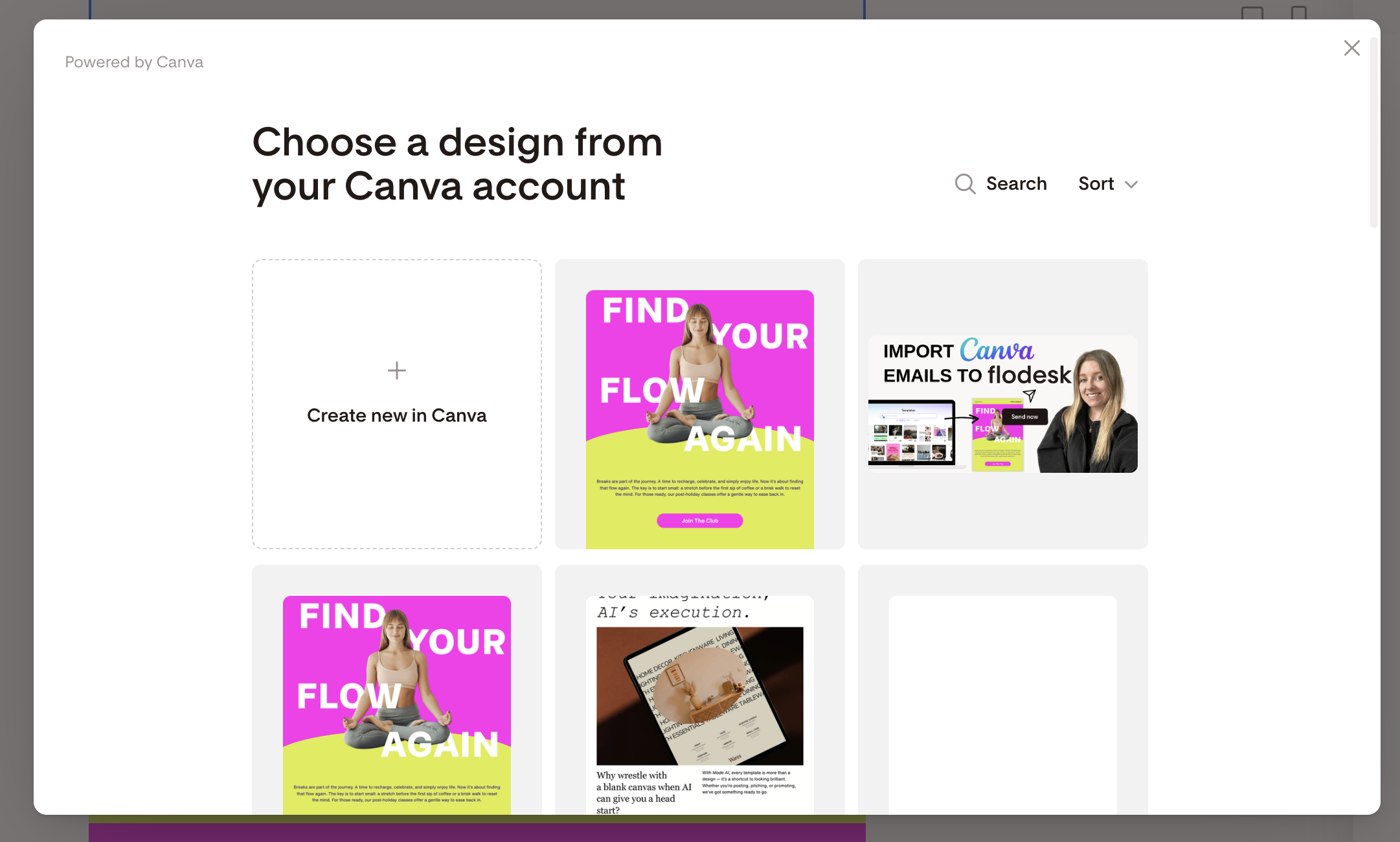
Choose from a list of your existing Canva designs and import it into the email easily with one click. You can also create a new one here, or edit the design in Canva first, then click ‘share to Flodesk’ in the top right corner to sync the updates with your Flodesk email (so seamless!).
Flodesk & Canva Integration 2: Design full emails in Canva and import them into Flodesk
The other (new!) way to use the Flodesk and Canva integration is to create a full email design all within Canva, and import the email into Flodesk with just one-click!
Step 1: Connect Canva in Flodesk’s integrations
Heading into your Flodesk Settings > Integrations and click to connect your Canva account here.
Step 2: Design your email in Canva
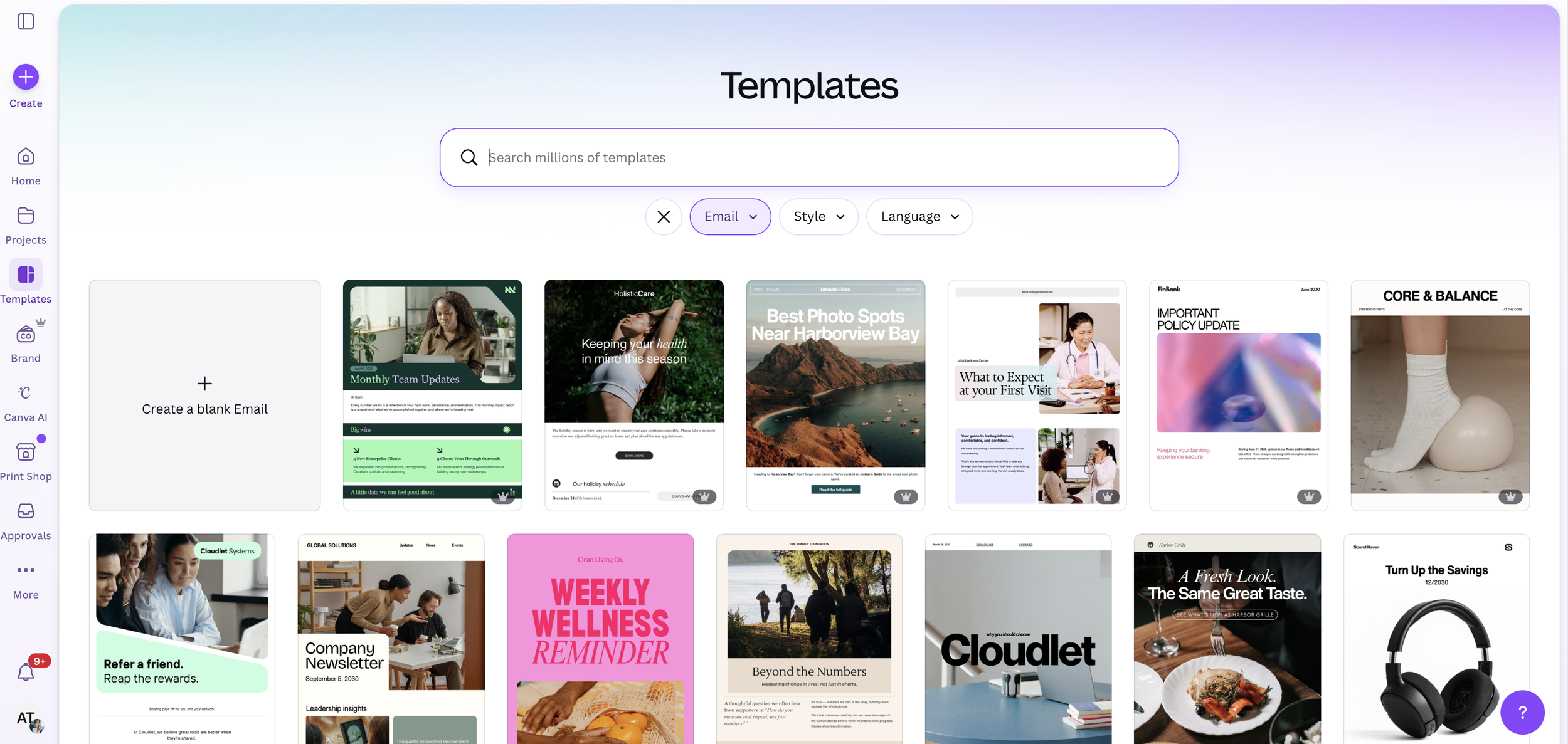
Head over to Canva and in the Templates section, search ‘Email’ or select ‘Email’ from the template formats available. Here you can choose to start with a pre-designed email template to customise, or start a new email from scratch.
It’s important you use these templates and not other Canva templates (eg. ‘newsletters’) as these won’t work to be imported into Flodesk.
Step 2: Share the email to Flodesk
Click ‘share’ in the top right corner and search for ‘Flodesk’. Here you can choose to add this email design to an existing email (it’s unlikely you’ll want to use this) or create a new email from this design. I’d suggest clicking that one!
Make sure your email design is totally finished first here in Canva because you can’t edit it within Flodesk, although you can come back to Canva to edit it and re-share it after you’ve made edits if you need.
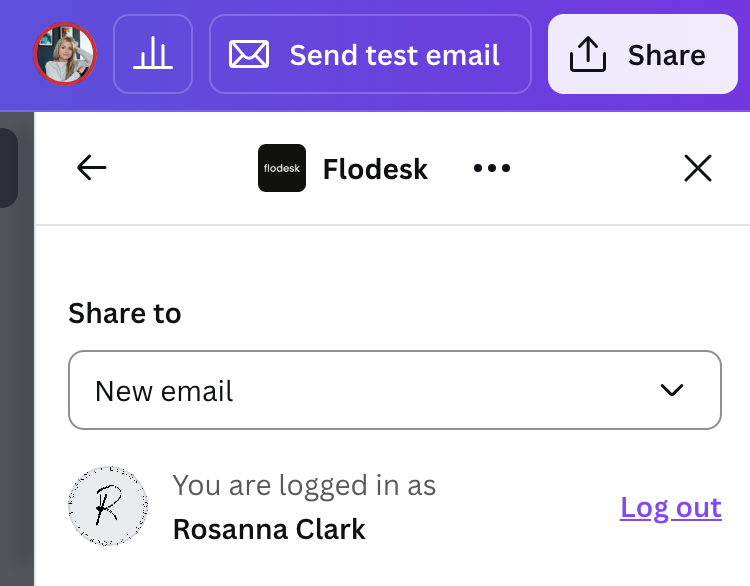
You also need to make sure you have removed the address section that comes with the Canva email design (as Flodesk will add your own in when it’s imported) and mapped the Unsubscribe, Preferences, and View in Browser links to Flodesk’s action links before sharing the design to Flodesk! I explain how to do this in my detailed video tutorial.
Step 3: Send the email from Flodesk!
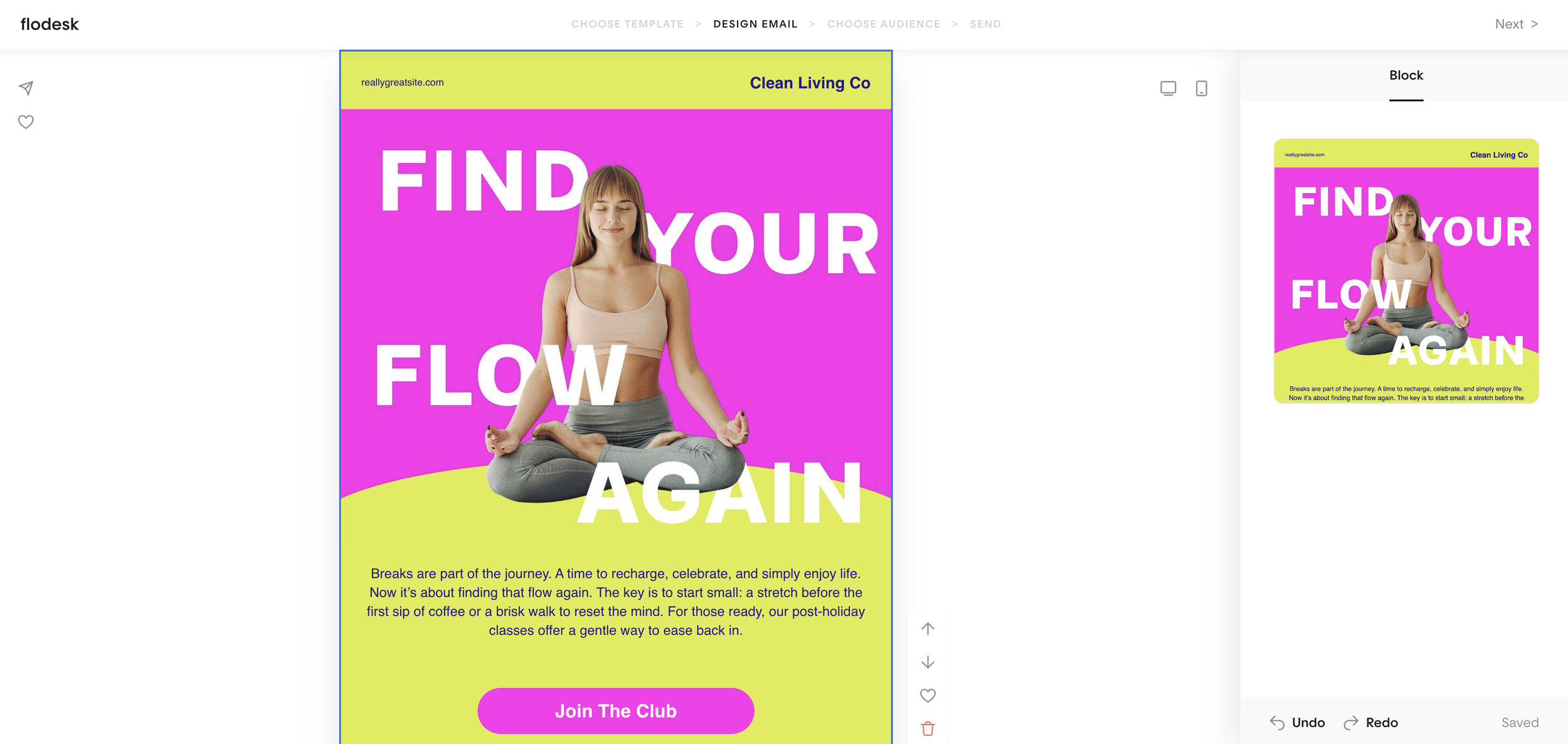
Once the email design is imported, you can click ‘next’ in the top right on Flodesk and choose your sender, subject line, and segments to send to, just like you would with a normal email when using Flodesk!
FAQs about the Canva & Flodesk Integration
Can I use any Canva design as a Flodesk email?
No, you must use Canva’s ‘Email’ template in order for it to sync with Flodesk, by going to Templates > Email and either selecting a pre-designed template to customise or click ‘create new email’. It won’t import to Flodesk if you use a ‘newsletter’ template, or any other type of design template in Canva.
How do Canva email designs render in inboxes?
Canva designs render as HTML when sent out to inboxes via Flodesk. This is great because it means most of the text is readable as text, not just overlaid on images that sometimes don’t load. According to Flodesk, however, there are sometimes rendering issues when people are using Outlook inboxes on mobile to read the emails.
Why can’t I edit the canva design straight in Flodesk?
Because of the way the design renders as HTML, it is locked when it is imported into Flodesk so you can’t edit it from in Flodesk. You need to go back into Canva, make the edits, and then ‘share’ again to Flodesk to make sure the design has synced with Flodesk.
Do I need Canva Pro to use this integration?
No, unless you want to use some of the Canva Pro templates. But you can create a design from scratch or use free templates and then import into Flodesk without paying for Canva.
How to get 25% off your first year of Flodesk
I’ve been using Flodesk since 2018 now and it’s one of my fave business tools! I’m grateful to be an affiliate partner for Flodesk as well so I can get my audience a discount on their plans.
If you sign up using my link (or start your paid plan using my code below), you can get 25% off your first year 🎉
Or use my code (00G2QH) at the checkout when you subscribe to a paid plan for the first time.